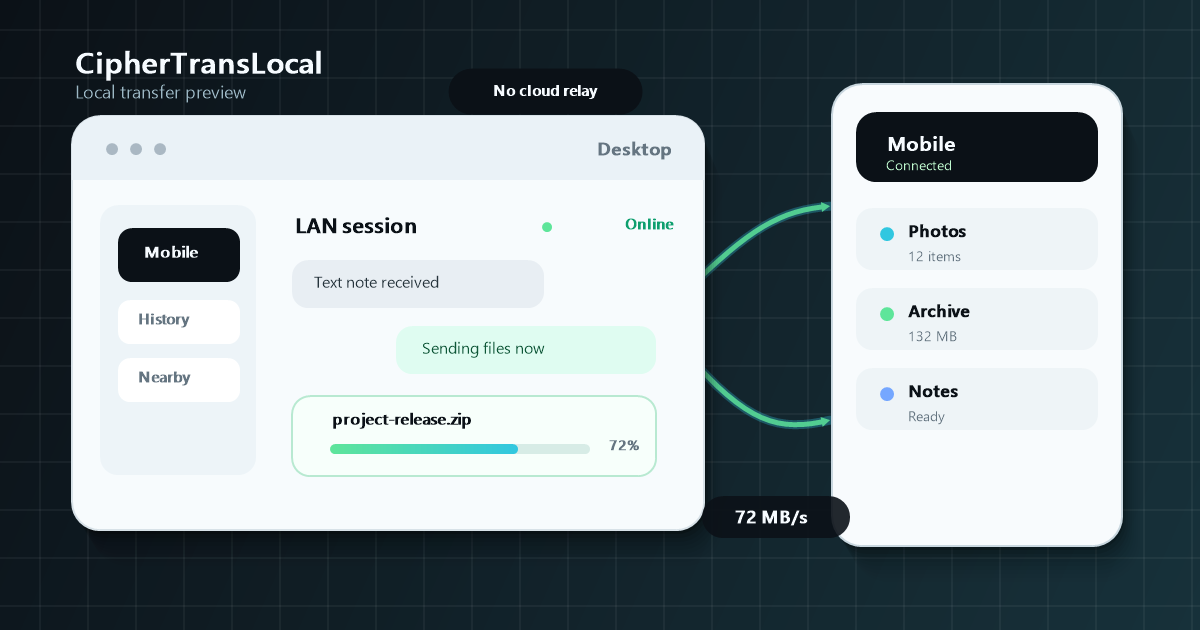
Steps to transfer files between Windows and Android
Install the app on Windows and Android
Use the CipherTransLocal download page to get the Windows installer or portable ZIP and the signed Android APK. Android may ask you to allow installation from the current source the first time you install the APK.
Connect both devices to the same local network
The PC may use Ethernet or Wi-Fi while the phone uses Wi-Fi. Both devices must be able to reach each other. Guest Wi-Fi, AP isolation, and corporate network policies can block discovery.
Open both apps and wait for automatic discovery
CipherTransLocal broadcasts and looks for devices on the local network, so you normally do not need to enter an IP address. Select the other device when it appears.
Choose photos, videos, documents, or other files
Send text, images, APKs, archives, documents, and large files. The transfer view shows speed, progress, and results, with pause, resume, cancel, and retry controls when needed.
Find the received file on the destination device
Windows saves received files to the configured folder. Android can save to Downloads, Gallery, or a selected folder depending on the file type and app settings.
Why use local network file transfer
No cloud upload first
Transfers stay between local devices, which is useful for temporary files, installers, and large files you do not want to relay through third-party cloud storage.
No ongoing sign-in after activation
First activation uses the key stored in your account. After activation, LAN transfer does not require a browser sign-in and activated devices keep working offline.
Original files and large transfers
Send photos, videos, APKs, and archives as files without reducing image quality or splitting content for a chat service.
What to do when devices cannot find each other
Check these items in order to identify the most common Windows and Android discovery problems.
Make sure this is not guest Wi-Fi
Guest networks often isolate devices. Move both devices to the normal home network or disable AP/client isolation on the router.
Allow the app through Windows Firewall
Allow CipherTransLocal on private networks when Windows asks. If it was previously denied, enable it again under the Windows Firewall allowed apps settings.
Check Android Wi-Fi and notification permissions
Allow nearby Wi-Fi devices, notifications, and foreground service behavior. To remain available in the background or while locked, avoid overly aggressive battery restrictions for the app.
Reopen both apps and refresh devices
After changing networks, reopen both apps and refresh the device list. VPNs, virtual adapters, and corporate security tools can also change local network routing.
Frequently asked questions
Do Windows and Android need internet access?
The transfer itself does not need internet access, but both devices must be on a local network where they can reach each other. Internet access is still needed to download and update the apps.
Can I send photos from Android to Windows?
Yes. Select the Windows device, then send photos, videos, documents, or other files from the Android file picker or share menu.
Can Windows send APK or ZIP files to Android?
Yes. APK, ZIP, and other common files are sent as original files. Whether Android allows an APK to open or install depends on the phone security settings.
What determines large-file transfer speed?
Speed mainly depends on Wi-Fi signal, router performance, device storage speed, and local network congestion. Keeping both devices near the router and using 5 GHz or faster Wi-Fi usually helps.
Ready to start a local transfer?
Download the Windows and Android apps first, then put both devices on the same reachable network.